November 17, 2026
PoolProof Quotes: What’s New


Most stalled quotes aren’t a pricing problem. We wrote about this back in June: customers sit on a quote when they aren’t clear on the options, or when saying yes takes too much effort.
Since then we’ve rebuilt a lot of how quotes work in PoolProof. You can now give customers real choices, get a signature before any work is committed, text a quote straight to their phone, and build the same quote in seconds instead of minutes. Here’s what’s new.
Table of Contents:
- Good, Better, Best Packages
- Sign to Accept
- Text a Quote to the Customer
- Quote Templates
- Terms and Conditions on Each Quote
- See Your Margin Before You Send
- Smaller Fixes That Save Time
- What Doesn’t Change
Good, Better, Best Packages
Offering a customer options shouldn’t mean building three quotes. But with most pool service software, that’s the only way to do it. A failed pump becomes one quote for a new motor, another for a two-speed pump, and a third for a variable speed pump, each with its own number and its own link.
That’s where the trouble starts. Your list now shows three open quotes for one job. Is the customer still deciding? Did they say yes to one while the other two sit open? Which of the three should your office follow up on?
Multiply that by every customer you give options to, and your quotes list fills up with noise. It looks like you have far more work pending than you do, and it gets harder to see where each customer actually stands. Someone also has to go back and clean up the options that didn’t get picked.
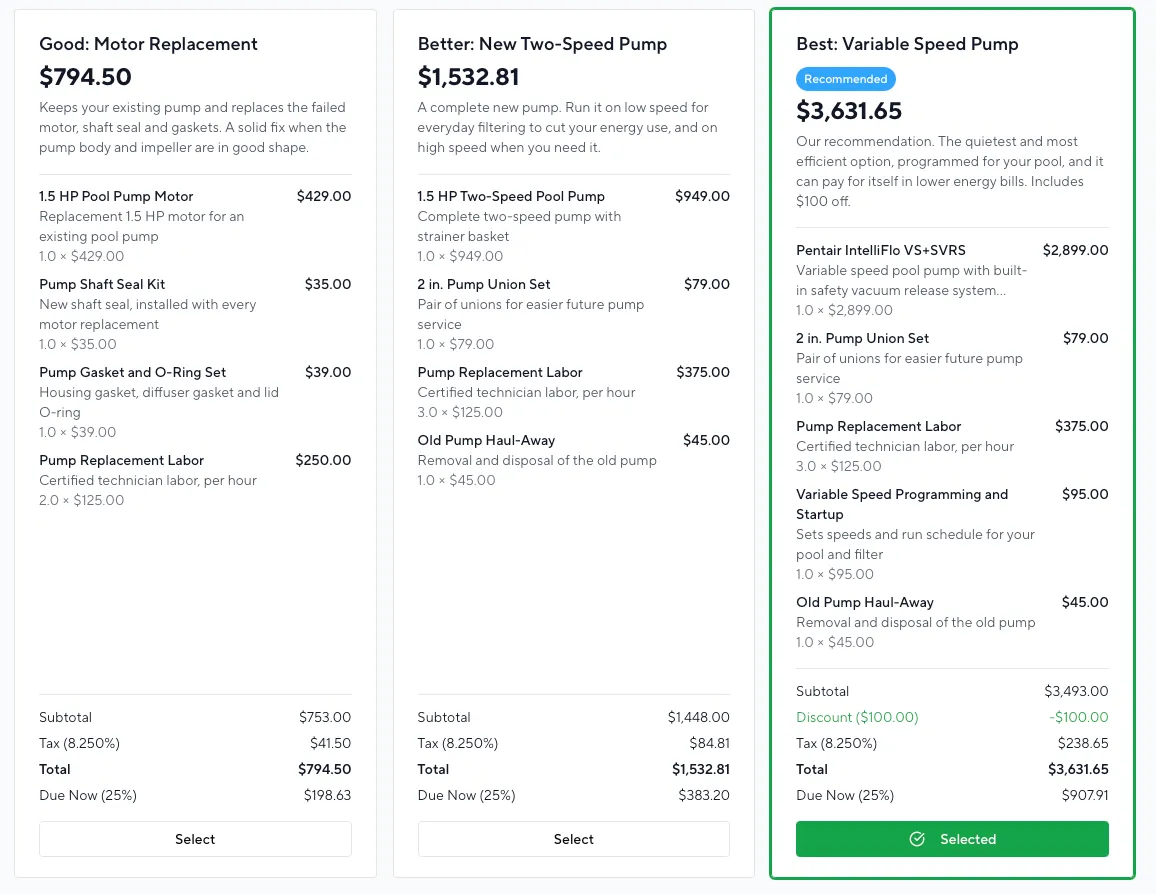
Packages fix this at the source. You can now offer two to four options on a single quote, so one job stays one quote with one status. Each package has its own name, description, line items, discount, and deposit, and you can mark one as Recommended.
The customer picks a package from the quote link or the customer portal. If they call you instead, your office can accept it on their behalf. Once a package is accepted, the quote carries that package’s items and totals, and there are no leftover quotes to chase or cancel.
Your quotes list stays clean too. Each job is one line with a “From” price, and the quote PDF shows every package with a price range.
Sign to Accept
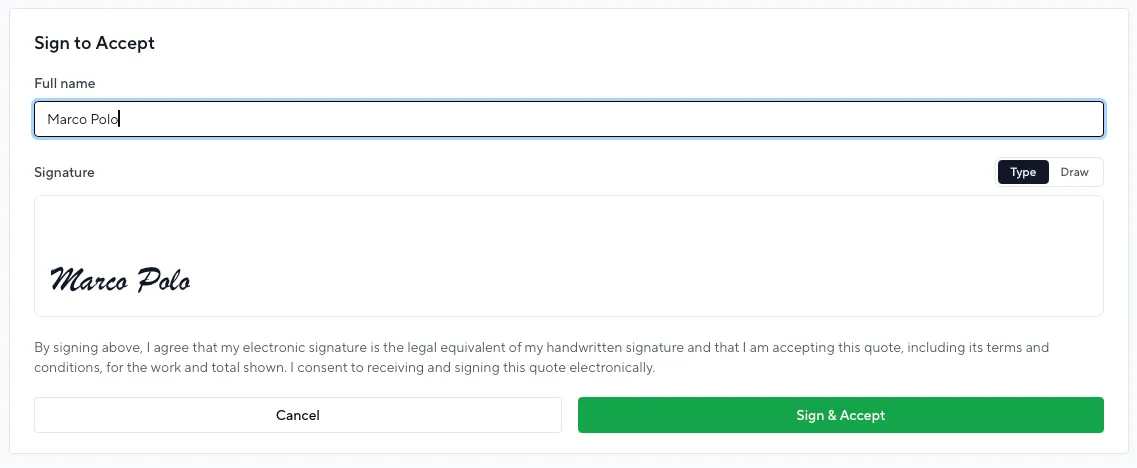
Customers now sign before they accept. They type their name or draw a signature, then click “Sign & Accept”. If the quote has a deposit, it’s collected after the signature, not before.
The signature is tied to exactly what the customer saw: the items, the prices, the terms, and the package they chose. Change the quote after they sign and the signature no longer counts, so they’ll be asked to sign again. Pick a different package and they sign for that one. That closes the “that’s not what I agreed to” conversation before it starts.
A signature can also protect you when a customer doesn’t pay. In many states, your right to file a mechanic’s lien on a home depends on having a signed, written agreement for the work, and a verbal yes often isn’t enough. A signed quote puts the scope, the price, and your terms in writing before the job starts.
Once the quote is accepted, PoolProof locks in a signed PDF with a signature page, which you can pull up from the quote and the customer can download. If a deposit card gets declined, the customer can retry the payment without signing again.
You can edit the consent language that appears above the “Sign & Accept” button in your quote settings. Declining a quote doesn’t need a signature, and neither does accepting on a customer’s behalf, since that’s your team recording a yes they got another way.
Text a Quote to the Customer
Some customers will never open the email. Now you can text any sent quote from the web or the mobile app. Pick one or more of the customer’s phone numbers, with the primary already selected, and they get a link to review and accept.
The message is yours to edit as an SMS notification template, so it sounds like your company. It goes out only when customer messaging is turned on for your account.
Quote Templates
If your team sends the same filter clean or pump replacement quote every week, it shouldn’t be typed from scratch every week.
A quote template saves a set of products and services along with a job summary, discount, and deposit. Apply it on the web or in the mobile app and the quote fills in. Prices come from your catalog, so a template never goes out with last year’s numbers.
On the web, you can also apply a template to one package of a packaged quote. Build your three tiers from three templates and you’re nearly done.
Terms and Conditions on Each Quote
You can now write custom terms for a single quote, on the web or in the app, for the job that needs different language. Terms are locked in when the quote is sent, so editing your standard terms next month doesn’t change what an earlier customer agreed to.
See Your Margin Before You Send
Job margin shows what a quote earns after product costs, right on the quote details and edit pages. It updates as you change line items, so you can see what a 10% discount really costs you before you offer it. On a packaged quote you get a separate margin for each package.
A few things worth knowing:
- It’s off by default. Turn it on under Settings → Quotes & Work Orders → General.
- Owners, Administrators, and Regional Managers see it by default. Sales and Service Technician roles don’t.
- Customers never see it. It stays off PDFs, the quote link, and the portal.
- It counts product costs only. Services and products without a catalog cost count as $0, and the card warns you when a line has no cost, so keep your catalog costs current.
It’s on work orders too, so you can compare what you quoted with the job you ran.
Smaller Fixes That Save Time
- Change the recipient. Sent a quote to the wrong email? Change the recipient any time before it’s accepted, without recreating the quote. The change is logged in the quote’s history.
- Override prices in the field. Team members with permission can adjust a unit price on a quote from the mobile app.
- Edit item descriptions. Change a line item’s description on a single quote without touching your catalog.
- “Deposit” everywhere. We replaced “down payment” with “deposit” across quotes, because that’s what your customers call it.
- A cleaner quote page. The quote edit page has a new layout, and adding items now works like a basket.
What Doesn’t Change
Your approved quotes still flow into work orders with the scope attached, so nobody re-enters anything. Your existing approval steps, deposits, and customer portal work the way they did.
Two limits to know about: packages are built on the web, and the mobile app shows packaged quotes as read-only. Signing happens on the quote link or the customer portal, not in the technician’s app, so a customer standing next to your tech signs from their own phone.